
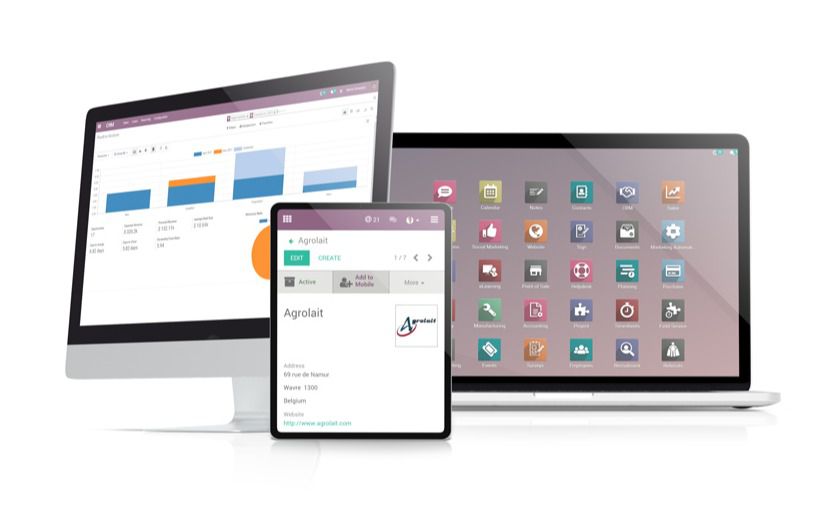
Customizing PDF reports is one of the most important steps in making Odoo reflect a company’s brand identity and operational needs. Whether it’s an invoice, quotation, purchase order, delivery slip, or manufacturing order, the design and structure of these documents matter. Clients, suppliers, auditors, and partners often judge your professionalism by the documents you send them. Fortunately, Odoo Studio provides a robust, no-code environment that allows anyone to customize PDF report templates without touching technical QWeb code.
This guide provides a 1200-word, in-depth look at how to customize PDF reports in Odoo Studio from start to finish. You will learn not only the steps, but also why each step matters and how to avoid the most common mistakes when designing reports.
Understanding How PDF Reports Work in Odoo
Before diving into customization, it is essential to understand the logic behind Odoo’s reporting system. All PDF reports in Odoo are generated through QWeb templates. QWeb is a markup language that defines structure, dynamic fields, loops, tables, and stylings. In traditional setups, modifying a PDF report required developer intervention and technical knowledge of XML and QWeb.
Odoo Studio changes this. It provides a visual interface that overlays report templates, allowing you to extend, rearrange, or enhance layouts without writing code. Studio does not rewrite the core QWeb file; instead, it creates an extension layer on top of it. This approach ensures that upgrades, module updates, or system changes do not break your custom report.
Step 1: Activate Odoo Studio
To begin customizing any PDF report, activate Odoo Studio. The Studio icon is usually located at the upper-right corner of your Odoo screen. When you click on it, Odoo switches into editing mode and highlights editable sections in the interface.
If you do not see the icon, check two things. First, make sure Studio is installed in your database. Second, verify that your user account has permission to use Studio. Once Studio is active, you can edit forms, views, models, and reports visually.
Step 2: Open the Specific Report You Want to Customize
The most reliable way to enter the report editor is by opening an actual document. For example:
Open a Sales Order
Click Print
Select Quotation
Let the PDF preview load
Activate Odoo Studio again
Studio detects which report template is currently being viewed and gives you access to its structure. This prevents you from accidentally modifying the wrong template, especially since many documents share similar names, such as “Quotation” and “Order Confirmation.”
Working from the preview ensures accuracy. You always know you are editing the right report.
Step 3: Explore the Odoo Studio Report Editor
The Studio editor contains specific components designed for report building. The main elements you will use include:
Text blocks
Static titles and headings
Data fields from your model
Images and logos
Tables
Column containers
Section blocks
Page breaks
Smart fields such as signature lines
These components allow you to redesign the structure without needing to edit underlying code. For example, if you want to create a three-column header containing your logo, address, and contact details, simply drag columns into place and fill them with text or fields.
The report editor also supports resizing components, adjusting alignment, and rearranging order. With these tools, you can redesign entire sections of your report from scratch.
Step 4: Add Business Fields Directly from the Model
One of the most powerful features of Odoo Studio is the ability to add dynamic fields from any model. For a quotation, you can insert fields such as:
Customer name
Customer VAT or registration number
Salesperson
Expiry date
Payment terms
Custom fields created by your team
Internal references
Delivery address
Warehouse details
When customizing invoices, Studio gives access to journal data, invoice numbers, payment status, and due dates. For purchase orders, you can insert vendor details, delivery promises, or custom procurement fields.
Adding fields is simple. Select “Add Field,” search for the desired field, and drag it into the layout. Odoo automatically pulls real-time data when generating a PDF. This helps companies create reports that reflect exactly what they need operationally without relying on developers.
Step 5: Build or Modify Tables for Lines and Totals
Most business documents include line items such as:
Products
Services
Descriptions
Quantities
Unit prices
Discounts
Taxes
Totals
Odoo Studio allows you to edit these tables. You can remove columns, add new columns, adjust widths, or reposition the entire table. Companies often use this feature to:
Add internal SKU codes
Display product barcodes
Show lot numbers or serial numbers
Insert manufacturing batch details
Add discount columns
Hide fields not relevant to customers
Similarly, summary sections can be changed to show subtotals, taxes, additional delivery charges, or internal cost information. These adjustments are especially useful for logistics, manufacturing, wholesale, and consulting businesses that require customised costing visibility.
Step 6: Customize Headers and Footers for Branding
Professional documents require properly designed headers and footers. With Studio, you can modify these areas using drag-and-drop tools. Companies typically use this space for:
Logos
Contact numbers
Email addresses
Physical addresses
Banking details
Compliance and registration information
Legal disclaimers
Taglines or marketing slogans
Headers and footers stay consistent across pages, which is essential for multi-page invoices or purchase orders.
A well-designed header immediately strengthens your brand identity, while a detailed footer ensures that customers have all necessary business information for payments and communication.
Step 7: Adjust Layout, Spacing, and Formatting
Layout adjustments are crucial for readability. Poor spacing can make a report look unprofessional or cluttered. Studio lets you refine:
Font sizes
Alignment
Margins
Color accents
Section spacing
Bold or italic emphasis
Label visibility
With these controls, you can create a clean, structured PDF that looks modern and easy to navigate. Businesses that regularly send proposals and quotations benefit from strong visual design because presentation affects conversion rates.
Step 8: Preview Your Custom Report Using Real Data
A common mistake is designing a report using only test content. Always preview your report using real data and multiple records. Test with documents that contain:
Long product lists
Multiple tax rates
Discounts
Empty fields
Optional sections
Different currencies
Large tables
Multiple addresses
This ensures your customization holds up in real-world situations. For example, a long product name may overlap a column if not tested properly. The goal is to ensure consistency, readability, and accuracy across all scenarios.
Step 9: Save and Publish Your Customized Report
Once you are satisfied, click Save. The customized template becomes the default version for all users. You can still revert to the original Odoo layout at any time. Studio provides options for undoing changes or restoring older versions if necessary.
Publishing does not affect other system components. Odoo automatically applies your customization each time a PDF is generated. This ensures a consistent professional appearance across all customer-facing documents.